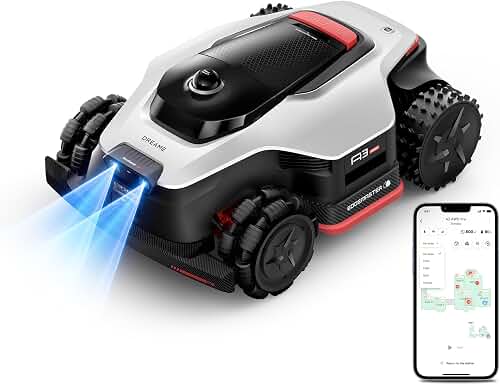
Setting up a Mammotion Luba 2 AWD multi-zone setup in a yard with mature trees, garden beds, narrow gates, and irregular grass sections is straightforward once you understand how the RTK reference station, the mapping wizard, and the obstacle avoidance system work together. This guide walks you through site survey, RTK antenna placement, mapping each zone, defining no-go areas around obstacles, configuring channels (the connecting paths between zones), and dialing in cutting schedules so each zone gets the right amount of attention. By the end, you will have a fully mapped multi-zone yard that the Luba 2 AWD can navigate autonomously, even with trees, flower beds, garden statues, and narrow side-yard pinch points scattered throughout.
The Luba 2 AWD is unusual among robot mowers because it uses RTK (Real-Time Kinematic) GPS instead of a perimeter wire. That means no trenching, no buried wire, and no broken signal loop if a landscaper nicks the cable. It also means the setup process is fundamentally different from anything you may have done with a Husqvarna Automower or a Worx Landroid: instead of laying a boundary, you walk the perimeter once with the mower and drop digital pins on a map. For yards with multiple disconnected lawn sections, this is a meaningful advantage, because adding a new zone is a matter of walking and tapping rather than re-trenching.
Before You Start: Site Survey and RTK Planning
Before unboxing anything, walk your property and answer four questions. First, where is the clearest patch of sky on your property? The RTK reference station needs an unobstructed view of at least 50 percent of the sky to lock onto enough satellites for centimeter-level accuracy. Second, how far is that clear-sky spot from the farthest corner of the farthest zone? The RTK reference has a stated effective radius of around 300 meters in open terrain, but tall trees, brick walls, and metal sheds will eat into that quickly. Third, do you have AC power and a Wi-Fi signal at the chosen RTK location? Fourth, where will the charging dock live, and can the mower reach every zone from that dock without crossing a driveway or sidewalk that is too wide to be a defined channel?
If you cannot find a single location with sky coverage that serves the whole property, Mammotion sells a separate RTK antenna with a long cable that lets you mount the antenna on a roof while the base unit lives in a garage or shed. Many multi-zone yards end up needing this accessory; budget for it now rather than later.
Step 1: Mount the RTK Reference Station Correctly
The single most common cause of mapping problems with the Luba 2 AWD is a poorly placed RTK reference. Mount the antenna as high as practical, at least 6 to 8 feet off the ground, ideally on a roof eave, a tall pole, or a sturdy fence post. Avoid mounting it against the south side of a chimney (the chimney itself will block sky), under tree canopy (leaves attenuate the signal), or next to any large metal surface (multipath reflections will degrade accuracy).
Once mounted, power the unit on and let it sit for at least 15 minutes before you start mapping. The reference station needs time to establish a stable fix and characterize its local satellite geometry. The Mammotion app will show a satellite count and a fix quality indicator: do not start mapping until you see a green RTK FIXED status with at least 20 satellites visible.
Step 2: Park the Charging Dock and Run the First Pairing
Place the dock on a flat, level surface within the largest zone, with at least 2 meters of clear runway in front of it so the mower can approach straight on. The dock should ideally face north in the northern hemisphere so the sun does not blind the docking sensor in the late afternoon. Connect dock power, then power on the Luba 2 AWD and let the app walk you through the initial pairing. The app will ask you to confirm the RTK base is online, then prompt you to drive the mower out of the dock and into a safe open area for the first mapping pass.
Step 3: Map Your Primary Zone
From the Mammotion app, select Create Task Area and choose Manual Mapping. Using the on-screen joystick, drive the Luba 2 AWD slowly around the perimeter of your largest lawn section, keeping the right wheel about 10 to 15 cm inside the edge. Drive at the slowest speed setting; this is not a race, and the precision of this initial trace determines how close the mower will cut to the edge forever after.
Take your time at corners. Stop the mower, rotate it in place to align with the next edge, and then resume driving. If you make a mistake, the app lets you back up and re-drive a segment without restarting the whole zone. When you return to your starting point, the app will close the polygon automatically and save the zone. Name it something descriptive, like "Front Yard" or "East Side Lawn," because you will be referring to these names when you build schedules later.
Step 4: Add No-Go Zones Around Obstacles
Inside each mapped zone, you will almost certainly have obstacles the Luba 2 AWD should never touch: trees with exposed roots, raised garden beds, decorative rocks, dog runs, pool decks, and so on. Although the Luba 2 AWD has ultrasonic and AI vision obstacle avoidance, you should not rely on it for fragile or expensive items. Draw an explicit no-go zone around each one.
In the app, select the saved zone and tap Add No-Go Area. Drive the mower around each obstacle the same way you drove the perimeter, leaving a buffer of 20 to 30 cm so the cutting deck never overhangs the boundary. For tree trunks, a circular no-go with a 50 cm radius is a good default; this leaves the trunk safe while letting the mower cut as close as possible to the surrounding turf. You will need to follow up with a string trimmer around the no-go boundaries, but that is true of every robot mower system.
Step 5: Map Additional Zones
Repeat Step 3 for every additional lawn section: side yards, back yards, the strip between the driveway and the sidewalk, anything you want cut. Each zone is mapped independently and stored as its own polygon. The Luba 2 AWD can hold up to 10 zones in memory, which is more than enough for almost any residential property.
For each new zone, confirm the RTK status is still FIXED before you start. If you drive the mower into a corner of the property where the RTK signal degrades (commonly behind a large building or under dense tree cover), the app will warn you and pause mapping. If this happens repeatedly in a particular zone, you may need to reposition the RTK antenna or, in extreme cases, accept that one corner of that zone cannot be reliably mowed and exclude it as a no-go.
Step 6: Define Channels Between Zones
This is the step that separates a working multi-zone setup from one that constantly gets stuck. A channel is a narrow corridor the Luba 2 AWD uses to travel between zones, typically a gate, a gap between hedges, or a paved walkway. The mower will not mow inside a channel; it only transits.
In the app, choose Add Channel and drive the mower from the edge of one zone, through the corridor, to the edge of the next zone. Keep the channel at least 80 cm wide; the mower itself is roughly 73 cm wide, so anything tighter risks the wheels catching on either edge. If your only path between zones is a 70 cm gate, you will need to either widen the gate or transport the mower manually between those zones (in which case, just give each zone its own dock if practical, or carry it).
Step 7: Configure Schedules and Cutting Heights Per Zone
One of the strengths of a multi-zone setup is per-zone configuration. The shaded back yard probably grows more slowly than the sunny front yard, so it does not need to be cut as often. A bermudagrass front lawn might want to be cut to 4 cm, while a tall fescue side yard prefers 7 cm. In the app, open each zone and set its cutting height, cutting pattern (parallel lines, edge-first, or random), and weekly schedule independently.
A reasonable starting schedule for most multi-zone yards: mow each zone two to three times per week during the growing season, never on rainy days (enable the rain sensor), and stagger the schedule so the mower is not trying to leave one zone just as another is starting. The app will warn you about scheduling conflicts.
Common Multi-Zone Setup Mistakes
The most frequent setup mistakes I see in Luba 2 AWD multi-zone deployments are: placing the RTK reference too low so satellite count drops below 15 in part of the yard; mapping perimeters at full speed so the resulting polygon is jagged and the mower cuts erratically along edges; forgetting to add no-go zones around sprinkler heads and exposed tree roots; trying to use a channel that is narrower than the mower; and scheduling all zones to run simultaneously, which the mower obviously cannot do. Each of these is easy to fix, but each will frustrate you if you do not catch it during initial setup.
If you are weighing the Luba 2 AWD against its closest premium competitor, see our Mammotion Luba 2 AWD vs Husqvarna Automower 430X NERA comparison for a head-to-head on RTK accuracy, slope handling, and multi-zone behavior. For broader buying context, our best robot lawn mowers for large yards roundup covers the full premium category, and our wire-free robot mower guide explains how RTK and vision systems compare to traditional boundary-wire designs.
Handling Slopes Inside a Multi-Zone Yard
The Luba 2 AWD is rated for slopes up to 38 degrees (80 percent grade) thanks to its all-wheel-drive system, which is well beyond what most competitors can manage. If one of your zones contains a significant slope, map it the same way as a flat zone, but pay extra attention to two things. First, drive perpendicular to the slope when mapping the perimeter to avoid drift. Second, set the cutting pattern for that zone to "parallel to slope contours" rather than "straight lines" to reduce stress on the drive motors and improve cut quality. For more on slope-capable models, our guide to robot mowers for hills and slopes covers the full landscape.
Maintenance Considerations for Multi-Zone Setups
Multi-zone yards put more wear on the Luba 2 AWD than single-zone setups because of the additional transit time spent in channels. Inspect the wheels weekly for embedded grit (especially if any channel crosses gravel), check the blade disc monthly, and clean the RTK antenna lens twice a season. Our general robot mower maintenance guide covers the full seasonal checklist.
Frequently Asked Questions
How many zones can the Mammotion Luba 2 AWD handle?
The Luba 2 AWD supports up to 10 mapped zones with independent schedules, cutting heights, and cutting patterns. Most residential properties will not come close to that limit. The practical constraint is usually battery life and channel connectivity rather than the zone cap itself.
What happens if the RTK signal drops mid-mow?
The mower will pause, attempt to re-acquire a fix for up to two minutes, and then either resume mowing if RTK returns or drive itself to the nearest safe location and notify you through the app. It will not continue mowing on dead reckoning alone, which is a safety feature, not a bug.
Do I need separate charging docks for each zone?
No, a single dock can serve all zones as long as the mower can reach each zone through a defined channel. If a zone is genuinely isolated (for example, separated by a public sidewalk you cannot use as a channel), you have two options: buy a second dock and pair it as a satellite station, or manually carry the mower to that zone when you want it cut.
How accurate is the cutting edge with RTK mapping?
With a properly placed RTK reference and a carefully driven perimeter trace, you can expect the cutting edge to be within 2 to 4 cm of the mapped boundary consistently. That is tighter than most boundary-wire systems and means less string-trimming work. Sloppy perimeter mapping at high speed degrades this significantly, which is why Step 3 matters so much.
Can the Luba 2 AWD handle narrow side yards between houses?
Yes, provided the side yard is at least 80 cm wide and has reasonable sky visibility. The narrower the corridor, the more critical the RTK signal quality becomes, because there is less room for the mower to recover from any positional drift. If your side yard is bordered by tall walls on both sides, expect RTK quality to drop and consider whether that section is better trimmed manually.
How long does the full multi-zone setup take?
For a typical 0.5-acre property with three to four zones and 10 to 15 obstacles, plan on 4 to 6 hours spread across two days: one day for site survey, RTK mounting, and dock installation, and a second day for mapping zones, drawing no-go areas, defining channels, and configuring schedules. Rushing this is the single most common reason people end up disappointed with the Luba 2 AWD.
What should I do if a no-go zone needs to change seasonally?
Edit it in the app. If you plant a new garden bed in the spring or remove a tree in the fall, open the affected zone, tap the no-go boundary, and either redraw it or delete it. Changes take effect on the next scheduled mow. There is no need to remap the whole zone unless the outer perimeter itself has changed.