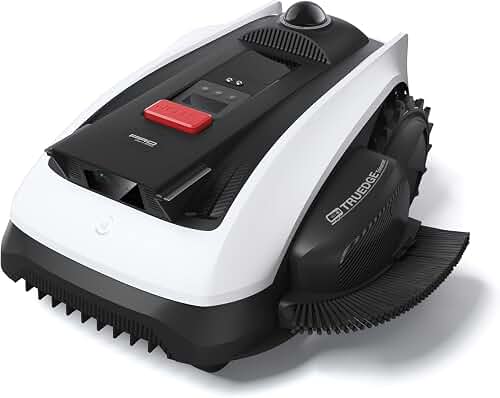
For a successful segway navimow starlink integration rural property setup, connect your Navimow to the Starlink router's 2.4 GHz Wi-Fi network, position the Starlink dish with clear sky view within 100 feet of the mowing area, ensure the Navimow's RTK reference antenna has unobstructed satellite reception, and use the Navimow app over the Starlink uplink to monitor mowing schedules, battery status, and intrusion alerts from anywhere. Rural acreages benefit most from this pairing because cellular coverage is often patchy and traditional broadband may be unavailable, leaving Starlink as the only practical way to keep a wire-free robotic mower online for remote management.
This 2026 guide walks through hardware placement, network configuration, RTK considerations, monitoring workflows, and the troubleshooting tricks that make the difference between a mower that runs unattended for months and one that drops offline every time the wind shifts. Whether you own a 2-acre weekend property or a 20-acre estate, the same principles apply.
Why pair a Segway Navimow with Starlink on a rural property?
Robot mowers like the Navimow rely on two distinct connectivity layers. The first is the local RTK (Real-Time Kinematic) GPS positioning system that keeps the mower inside its virtual boundary; the second is internet connectivity that powers the smartphone app, firmware updates, geofencing alerts, and theft tracking. The RTK layer works entirely offline once configured, but the monitoring layer needs reliable broadband.
On a rural property, this is exactly where most owners hit a wall. Cable and fiber rarely reach beyond suburban density. 4G/LTE hotspots can work, but coverage drops sharply once you are more than a few miles from a tower, and metal outbuildings or tree cover make things worse. Starlink's low-earth-orbit satellite service sidesteps the problem entirely. As long as the dish has sky view, you get 50-250 Mbps with latency low enough for live video and app polling.
That makes a segway navimow starlink integration rural property deployment one of the few realistic ways to leave a robotic mower operating across a sprawling acreage while you're traveling, working off-site, or simply spending the evening indoors a quarter-mile away from where the mower lives.
What you need before you start
Before you touch a single setting, gather the following:
- A Segway Navimow model (i105, i108, H-series, or X-series) with the latest firmware installed via a previous Wi-Fi connection.
- An active Starlink kit (Standard, Mini, or High Performance) with the service activated and the router powered on.
- The Segway Navimow mobile app installed on iOS or Android.
- A clear view of the southern sky (or northern sky in the southern hemisphere) for the Starlink dish.
- A weatherproof location for the Navimow charging base and RTK reference antenna with open sky overhead.
- Outdoor-rated power for both the Starlink router and the Navimow base.
- Optional: a Wi-Fi mesh extender or outdoor access point if the Starlink router is more than ~75 feet from the mowing area.
If you haven't yet picked a mower, our Segway Navimow i105 review covers which model suits which yard size, and our roundup of the best robot lawn mowers for large yards compares the i108E and H-series for properties above an acre.
Step 1: Position Starlink for reliable coverage
The single biggest mistake rural owners make is installing the Starlink dish for household convenience without thinking about the mower. The Navimow's onboard Wi-Fi radio is a 2.4 GHz client with modest range, typically 80-120 feet in line of sight and less through walls. If your dish lives on the south side of a farmhouse and the mower charges on the north side, you'll fight signal drops constantly.
Use the Starlink app's obstruction tool to identify a mounting location that gives the dish a clean field of view above 25 degrees elevation. Then walk the Starlink router toward the mower's charging base location and look for a spot that splits the difference. Many rural owners mount the dish to a barn or shed near the mowing area and run the proprietary Starlink cable from there.
If the gap is unavoidable, plan to add a weatherproof outdoor mesh node (an Eero 6+ outdoor model, TP-Link Deco X50 outdoor, or Ubiquiti UniFi U6-Mesh-Pro) that links back to the Starlink router. Position it within 30 feet of the Navimow base.
Step 2: Configure the Starlink network for IoT devices
Open the Starlink app, go to Settings, and confirm the following:
- Wi-Fi name and password are set (avoid special characters that some IoT firmware mishandles: stick with letters, numbers, and underscores).
- Bypass mode is OFF unless you are using your own router. If you are using your own router, configure it with a guest or IoT SSID on the 2.4 GHz band.
- Sleep schedule is disabled, or scheduled so the network is active during mowing hours.
- Note the local IP of the Starlink router (default 192.168.1.1) for later troubleshooting.
Starlink defaults to a dual-band SSID that auto-steers clients. The Navimow's radio sometimes fails to join when the router tries to push it to 5 GHz. If you see repeated join failures in Step 3, enable the "separate 2.4 GHz network" option in the Starlink app and create a dedicated 2.4 GHz SSID for the mower.
Step 3: Connect the Navimow to the Starlink Wi-Fi
Power up the Navimow on its charging base. In the Navimow app, navigate to Device Settings Network Wi-Fi Setup. The app will put the mower into pairing mode and prompt you to select a network. Choose your Starlink SSID (or the dedicated 2.4 GHz SSID), enter the password, and wait for the connection indicator to turn green.
You'll know the integration is healthy when the Navimow app shows real-time battery percentage, current mowing status, and a fresh "last seen" timestamp from outside your local network (turn off Wi-Fi on your phone and reload the app over cellular to test). If it works there, the Starlink uplink is working.
If you're new to the broader installation process, our step-by-step robot lawn mower installation guide covers base placement, charging cable routing, and boundary mapping, which all happen before the network step.
Step 4: Place the RTK reference antenna correctly
This is the step most rural owners get wrong, and Starlink can't fix it. The Navimow's wire-free boundary system depends on RTK GNSS, which requires the reference antenna to see a wide patch of sky. Trees, barns, silos, and even tall corn can degrade RTK fix quality and cause the mower to pause with a "weak signal" error.
Mount the RTK antenna on the included mast at least 10 feet above ground and clear of nearby structures by at least the height of the obstruction. On rural properties where the only mounting option is the side of a barn, extend the mast upward until the antenna sits above the roofline. If you have heavy tree cover, consider the wired-boundary Husqvarna ecosystem instead, or supplement with the Navimow's secondary RTK reference station accessory placed in an open paddock.
Step 5: Enable remote monitoring features
With the network and RTK both working, turn on every monitoring feature you'll actually use:
- Geofence alerts — push notification if the mower leaves a defined area, useful on properties without fencing.
- Anti-theft lock — the mower's onboard cellular module (where available) and Wi-Fi connection both check in; if it's moved, you get an alert.
- Schedule notifications — push alerts when a scheduled mow starts, completes, or aborts.
- Battery and error alerts — critical when you're hours away from the property.
- Firmware auto-update — leave enabled; Starlink bandwidth is more than adequate.
If you also run a Starlink-connected security camera looking at the charging base, you've created a complete remote monitoring stack: visual confirmation of the mower's location, app-based status data, and audible alerts if anything goes wrong.
Optimizing the integration for large rural acreages
Once the basics work, fine-tune for unattended operation. Set mowing schedules for daylight hours when satellite coverage is most consistent and when any RTK reacquisition after a pause happens faster. Avoid mowing during heavy precipitation; Starlink occasionally degrades during atmospheric river events, and the Navimow will pause anyway due to its onboard rain sensor.
For properties over 5 acres, segment the lawn into smaller mowing zones in the app. This reduces the impact of any single RTK glitch and gives you cleaner progress reporting through the Starlink-backed app. If the mower needs to traverse long corridors between zones, mark them as transport paths so the mower doesn't try to cut grass it shouldn't.
Plan for power resilience. A 5-minute power blip will reboot both the Starlink router and the Navimow base. A small UPS (CyberPower CP1500AVRLCD or APC BR1500MS2) protecting the router keeps the network online during brownouts so the mower can resume reporting status as soon as power returns.
Common challenges and fixes
The mower keeps dropping off Wi-Fi. Check signal strength at the charging base with a phone. If RSSI is weaker than -70 dBm, add a mesh node closer to the base, or relocate the Starlink router. The Navimow's radio is not as sensitive as a modern phone.
App shows "offline" but the mower is running. This is almost always a Starlink router issue, not a mower issue. Power-cycle the router. If it happens repeatedly, check the Starlink app for obstruction warnings or scheduled maintenance.
RTK signal drops during specific times of day. GPS satellite geometry changes throughout the day. If you have marginal sky view, certain hours will be worse than others. Reschedule mowing for the strongest windows, or raise the RTK antenna.
Firmware update fails midway. Starlink can introduce brief packet loss during satellite handoffs. Restart the update; Navimow firmware updates resume cleanly. For persistent failures, our robot lawn mower troubleshooting guide walks through resetting the mower's network stack.
Latency seems high when controlling the mower remotely. Starlink latency is typically 25-50 ms but can spike to 200 ms during congestion. This is fine for status checks and scheduling but can feel sluggish in manual drive mode. Use manual drive mode while on the local network when possible.
Frequently Asked Questions
Does Segway Navimow work with Starlink Mini for small rural cabins?
Yes. The Starlink Mini provides the same 2.4 GHz Wi-Fi that the Navimow needs, and its lower power draw makes it ideal for off-grid cabins running on solar. The only caveat is the Mini's smaller dish has a narrower field of view, so obstruction-free mounting is even more important. Pair the Mini with a small mesh node if your mower base is more than 50 feet from the dish.
Can the Navimow use Starlink's cellular fallback or only Wi-Fi?
The Navimow connects to whatever 2.4 GHz Wi-Fi network you give it. Starlink itself doesn't have cellular fallback; what you're providing is the Starlink Wi-Fi. If your Navimow model has an integrated 4G modem (some H-series and X-series variants), it can use cellular independently when Wi-Fi is down, but Wi-Fi via Starlink remains the primary path for status reporting and is generally more reliable on rural properties.
How much Starlink bandwidth does a Navimow actually use?
Very little. Steady-state usage is under 100 KB per hour for status telemetry. Firmware updates are the biggest spikes, typically 50-200 MB once every few weeks. Even on a Starlink Roam plan with usage limits, the mower's traffic is negligible. The bigger consumers will be any Starlink-connected security cameras you add to the same network.
Will the Navimow keep mowing if Starlink goes down mid-cycle?
Yes. Once a mowing job is scheduled or started, the Navimow runs autonomously using its onboard RTK boundary data. Internet connectivity is only needed for status reporting, remote commands, and firmware updates. A 30-minute Starlink outage during a thunderstorm will not interrupt mowing; the mower will simply resync the next time the network comes back.
Can I monitor multiple Navimow units on one Starlink connection?
Yes. The Starlink router can handle dozens of IoT clients, and the Navimow app supports multiple mowers per account. Large estates with several mowers covering different zones can all report through a single Starlink uplink, with each mower receiving its own schedule and notifications.
Does Starlink interfere with the Navimow's RTK GPS signal?
No. Starlink's user terminal operates in the Ku-band (12-18 GHz), while GNSS/RTK uses L-band (1-2 GHz). The frequencies are far enough apart that there is no practical interference. Just don't physically place the Starlink dish on top of the Navimow's RTK antenna mast, since the dish itself blocks the sky view the RTK antenna needs.
What happens during Starlink scheduled maintenance windows?
Starlink maintenance windows typically last a few minutes and occur during off-peak hours. The Navimow will show "offline" in the app during this period but resume reporting automatically. If you need 100% monitoring uptime, configure the Starlink router as a secondary network and add a cellular hotspot as primary, then let the Navimow connect to a mesh SSID that bridges both.